
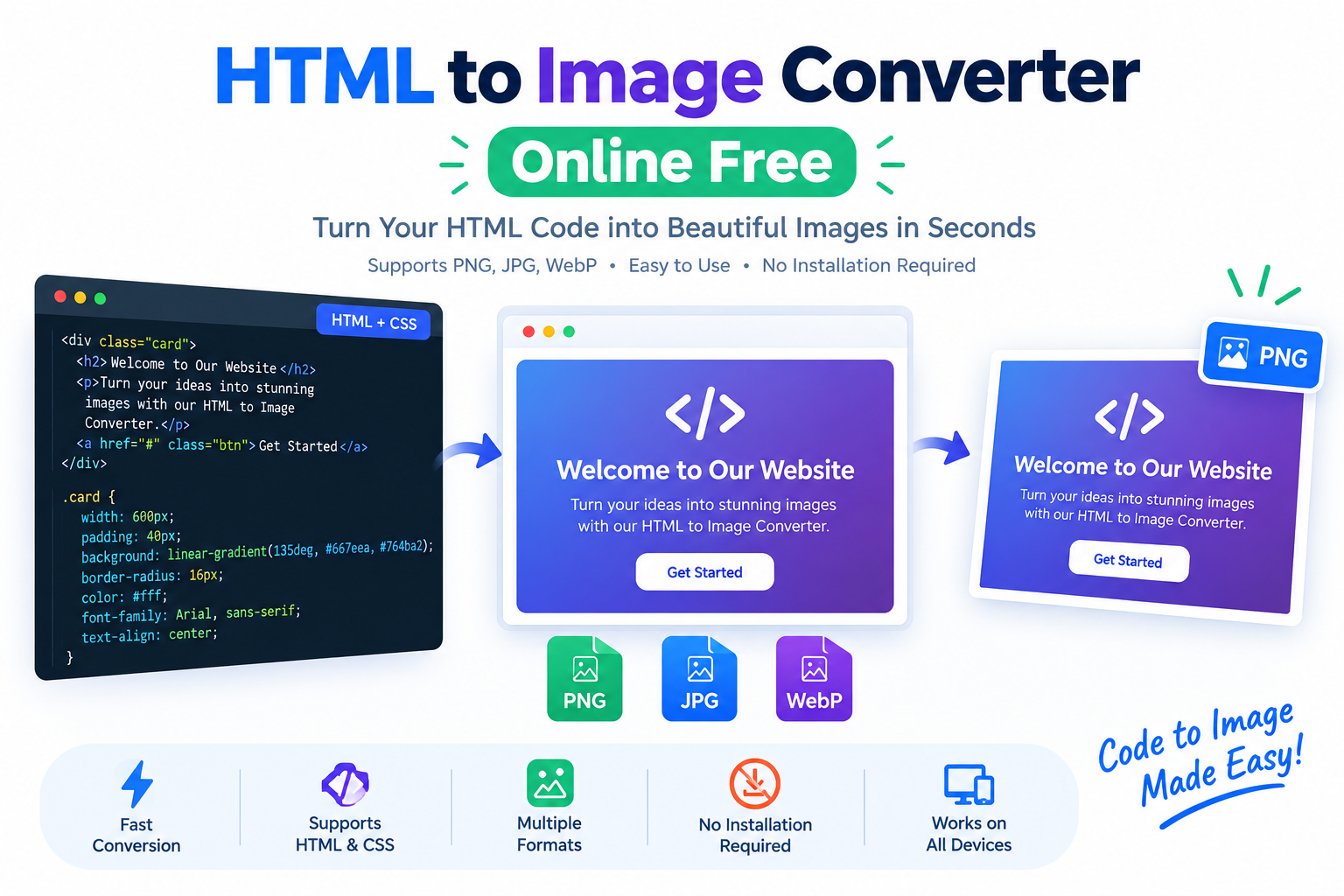
HTML to Image Converter Online Free
Converting HTML code into an image is useful when you want to turn a webpage design, HTML component, email template, social media card, invoice, certificate, or custom web layout into a static image. Instead of taking a manual screenshot, an HTML to Image Converter can render your HTML and CSS and export the visual result as an image such as PNG, JPG, or WebP.
An online HTML to image converter makes this process much easier. You can provide HTML code, apply CSS styling, preview the result, and generate an image without opening a graphics editor or manually capturing your screen.
Whether you are a web developer, designer, marketer, blogger, or content creator, an HTML to Image Converter Online Free can save time when you need a clean image from web-based content.
What Is an HTML to Image Converter?
An HTML to Image Converter is an online tool that transforms rendered HTML and CSS into a static image.
HTML itself is markup rather than an image format. When a browser loads HTML, it interprets the markup, applies CSS, loads images and fonts, runs supported JavaScript, and calculates the layout. The resulting visual output can then be captured and exported as an image.
Depending on the converter, the rendering may happen directly in your browser or on a server using a browser engine such as Chromium. Browser-based approaches can be convenient for private content, while server-side browser rendering can provide high compatibility with complex layouts and JavaScript-heavy pages.
With an HTML to image tool, you can create images from:
HTML code
HTML and CSS components
Webpage layouts
UI cards
Product cards
Email templates
Certificates
Invoices
Social media graphics
Open Graph images
Website previews
Documentation screenshots
How Does HTML to Image Conversion Work?
The basic process is simple.
First, the converter receives your HTML and CSS. The markup is then rendered in a browser-like environment. CSS properties such as fonts, spacing, colors, borders, gradients, flexbox, grid layouts, shadows, and other supported visual properties are applied.
After the layout is rendered, the visible result is captured and encoded into an image file.
A typical conversion process looks like this:
HTML + CSS → Browser Rendering → Visual Layout → Image Capture → PNG/JPG/WebP
Some tools use browser-side technologies such as HTML5 Canvas. Others use a real browser engine on a server. A real Chromium-based renderer generally provides stronger browser-level rendering for complex CSS and JavaScript, while DOM-to-canvas libraries can be convenient when the content is already displayed inside the user's browser.
How to Convert HTML to an Image Online
Using an HTML to image converter is usually straightforward.
Step 1: Prepare Your HTML
Write or copy the HTML you want to convert.
For example:
<div class="card"> <h2>My Product</h2> <p>This is an HTML design converted into an image.</p> </div>
Step 2: Add CSS Styling
CSS controls how the HTML looks.
You can define:
Width and height
Background colors
Font sizes
Font families
Borders
Border radius
Shadows
Padding
Margins
Flexbox
Grid
Gradients
For example:
.card { width: 600px; padding: 40px; background: white; border-radius: 20px; font-family: Arial, sans-serif; }
Step 3: Preview the HTML
Before generating the image, check the rendered result. Make sure that text, images, spacing, fonts, and other design elements appear correctly.
Step 4: Choose the Image Size
Set the desired output dimensions if your converter provides custom width and height controls.
For example:
800 × 600 for general graphics
1200 × 630 for social sharing cards
1080 × 1080 for square social media graphics
1920 × 1080 for presentation-style graphics
A 1200 × 630 canvas is commonly used for Open Graph and social preview images.
Step 5: Convert HTML to Image
Click the conversion or render button. The converter processes the HTML and creates the selected image format.
Step 6: Download the Image
Once rendering is complete, download the generated PNG, JPG, or other supported image format.
HTML to PNG Converter
PNG is one of the best formats for converting HTML designs into images when you need sharp text, graphics, UI components, transparency, or lossless quality.
PNG is particularly useful for:
Website UI screenshots
Logos
Cards
Diagrams
Certificates
Infographics
Transparent designs
Documentation graphics
Because PNG uses lossless compression, it can preserve fine details better than lossy JPEG compression.
If your HTML design contains text and sharp interface elements, PNG is often a good choice.
HTML to JPG Converter
JPG or JPEG is useful when you want smaller image files.
JPEG is commonly used for:
Website previews
Photographic content
Blog graphics
Social media images
Large screenshots
Email graphics
The main advantage of JPG is its smaller file size. However, because JPEG uses lossy compression, extremely sharp text and UI elements may not look as clean as they do in PNG.
For a text-heavy HTML design, PNG is generally preferable. For photographic or file-size-sensitive content, JPG can be more practical.
HTML to WebP Converter
WebP can provide smaller image files while maintaining good visual quality. This makes it useful for websites where page speed and image performance are important.
You can use WebP output for:
Blog images
Website previews
Product graphics
Social content
Thumbnails
Marketing graphics
If your image converter supports WebP, it can be a useful alternative to PNG and JPG.
Why Convert HTML to an Image?
There are many situations where HTML content needs to become a static image.
Create Social Media Graphics
HTML and CSS can be used to create reusable social media templates. Once rendered, the template can be exported as an image and uploaded to social platforms.
Instead of manually designing every graphic, you can create a structured HTML template and change the text, colors, images, or branding.
Generate Open Graph Images
Open Graph images are displayed when webpages are shared on platforms that support link previews.
A common approach is to create a 1200 × 630 HTML template containing:
Article title
Website name
Logo
Author information
Background
Brand colors
The HTML template can then be rendered into a static image and used as an og:image. HTML-based templates are particularly useful when you need to generate many consistent social preview images.
Create Website Preview Images
Developers and marketers can convert HTML layouts into images for documentation, presentations, portfolios, and marketing materials.
For example, a software company could generate an image showing a dashboard interface without requiring the reader to interact with the live application.
Convert UI Components into Images
Web designers often create cards, dashboards, pricing tables, product previews, and other components with HTML and CSS.
Converting these components to images makes it easier to share them with clients, include them in documentation, or use them in presentations.
Generate Certificates
HTML can be used to create certificate templates containing dynamic information such as:
Recipient name
Course name
Completion date
Certificate number
Organization name
Signature
Logo
The completed HTML certificate can then be converted into an image for sharing or previewing.
Create Invoice and Receipt Images
Businesses can create invoice or receipt layouts using HTML and CSS. Once populated with customer and transaction information, the rendered layout can be converted into an image.
This can be useful for previews, notifications, email attachments, or internal records.
Preview HTML Email Designs
HTML email templates can be difficult to evaluate from source code alone. Converting an HTML email design into an image provides a quick visual representation of the layout.
This can help designers review:
Headers
Buttons
Typography
Product cards
Images
Spacing
Promotional sections
HTML to Image for Web Developers
Developers can use HTML-to-image conversion for many automation and development tasks.
For example, a developer can create an HTML template for a product card:
<div class="product-card"> <h2>Premium Software</h2> <p>Professional tools for modern businesses.</p> <strong>$49</strong> </div>
The application can populate this template dynamically and render it into an image.
This approach can be useful for generating large numbers of visual assets from structured data.
HTML to Image for Bloggers
Bloggers can use HTML templates to generate consistent featured images.
A template might contain:
Blog title
Category
Author
Logo
Background image
Brand colors
Instead of creating every featured image manually, the same HTML template can be reused for multiple articles.
This can make content production faster and help maintain consistent visual branding.
HTML to Image for Social Media Marketing
Social media campaigns often require multiple graphics with similar designs.
For example, a marketing team may need 100 promotional images containing different:
Product names
Prices
Headlines
Discounts
Dates
Calls to action
An HTML template can provide a repeatable structure. The content can be changed programmatically, and each version can be rendered into an image.
This makes HTML-to-image conversion useful for scalable content production.
HTML to Image vs Screenshot
An HTML-to-image converter and a normal screenshot may appear similar, but they are not always used in the same way.
A manual screenshot captures whatever is visible on your screen. The result may include browser controls, incorrect dimensions, or unwanted parts of the interface.
An HTML-to-image converter can provide more controlled output.
You can often define:
Exact width
Exact height
Output format
Full-page capture
Element capture
Image quality
Background
Scaling
This makes automated HTML rendering more suitable for repeatable image generation.
Browser-Based HTML to Image Conversion
Some HTML-to-image tools process everything inside the browser.
This can be useful when privacy is important because your HTML does not necessarily need to be uploaded to a remote server.
Browser-based tools can use technologies such as Canvas and DOM rendering libraries. However, DOM-to-canvas solutions may not reproduce every CSS property exactly as a native browser screenshot would. Cross-origin images and unsupported CSS can also affect the result.
For simple HTML components, browser-based conversion can be fast and convenient.
Server-Side HTML to Image Conversion
Server-side converters can use a headless browser such as Chromium to render HTML.
The advantage is that the server can provide a consistent rendering environment and handle automated workflows.
This approach is useful for:
API-based image generation
Dynamic Open Graph images
Automated screenshots
Bulk image generation
Scheduled content
Application-generated graphics
A headless browser can render HTML in a way that closely resembles a normal browser because it uses an actual browser engine.
How to Get Better HTML to Image Results
The quality of the output depends heavily on the HTML and CSS you provide.
Use Explicit Dimensions
Define the width and height of important containers.
This helps ensure that your design fits the output canvas correctly.
Use Reliable Fonts
If your design depends on a specific font, make sure the rendering environment can access it.
Missing fonts can cause text dimensions and layout to change.
Use Absolute Image URLs When Necessary
If the rendering environment is separate from your website, relative image paths may not resolve correctly.
For example:
<img src="https://example.com/images/logo.png">
can be more reliable than:
<img src="images/logo.png">
when rendering HTML without a base URL.
Wait for Images and Fonts
Dynamic rendering should allow images, fonts, and other required resources to finish loading before the capture occurs.
Otherwise, the generated image may contain missing images or fallback fonts.
Avoid Unnecessary Animations
Animations and transitions can produce inconsistent screenshots because the capture may happen while an animation is running.
For static image generation, it is usually better to create a stable layout without unnecessary animation.
Common HTML to Image Problems
Images Are Missing
One of the most common problems is an incorrect image path.
Use valid URLs or properly embedded image data when the renderer cannot resolve relative paths.
Fonts Look Different
If a custom web font is unavailable, the renderer may use a fallback font. This can change line wrapping, spacing, and overall layout.
CSS Looks Different
Not every HTML-to-image technology supports every CSS feature equally.
A browser-based DOM reconstruction library may support a different set of CSS features than a real Chromium browser.
JavaScript Content Is Missing
If your HTML relies on JavaScript to generate content, the rendering system must execute that JavaScript before capturing the result.
A simple DOM-to-canvas approach may not behave the same way as a full browser renderer.
Output Is Too Small
If your HTML container has small dimensions, the generated image may also be small.
Define an explicit output size and design your HTML around that canvas.
Best Image Size for HTML to Image Conversion
The best size depends on what you are creating.
| Purpose | Common Size |
|---|---|
| Social media card | 1200 × 630 |
| Full HD graphic | 1920 × 1080 |
| Square social graphic | 1080 × 1080 |
| Blog thumbnail | 1200 × 675 |
| Website preview | 1280 × 720 |
| Mobile preview | 390 × 844 |
| Desktop preview | 1440 × 900 |
For Open Graph images, 1200 × 630 is a widely used format for social sharing previews.
Is HTML to Image Conversion Free?
Yes, many online HTML-to-image converters offer free conversion for basic use.
The available features depend on the specific service. Some tools may support free PNG conversion, while advanced features such as API access, automated rendering, larger images, bulk processing, or higher usage limits may require a paid plan.
If you only need to convert HTML occasionally, a free online converter can be sufficient.
Is HTML to Image Conversion Safe?
The answer depends on how the specific tool processes your HTML.
If the converter runs entirely inside your browser, your HTML can remain on your device. Server-side converters, on the other hand, need to receive the HTML or URL so their rendering server can process it.
For sensitive content, always check the service's privacy and data-retention policy before uploading confidential HTML.
Avoid submitting passwords, private customer information, authentication tokens, API keys, or other sensitive information to an online converter unless you trust the service and understand how it handles submitted data.
Who Can Use an HTML to Image Converter?
An HTML to Image Converter is useful for many types of users.
Web developers can convert UI components and dynamically generated layouts into static graphics.
Web designers can quickly preview and share HTML/CSS designs.
Bloggers can generate featured images and social preview graphics.
Digital marketers can create branded campaign graphics.
SEO professionals can generate Open Graph images for websites and articles.
Email designers can create visual previews of HTML email templates.
Business owners can create certificates, receipts, invoices, and promotional graphics.
HTML to Image Converter Online Free: Frequently Asked Questions
What is an HTML to Image Converter?
An HTML to Image Converter renders HTML and CSS and converts the resulting visual layout into an image such as PNG, JPG, or WebP.
Can I convert HTML to PNG?
Yes. PNG is one of the most common output formats for HTML-to-image conversion and is particularly suitable for designs containing text, UI elements, graphics, and transparency.
Can I convert HTML to JPG?
Yes. If the converter supports JPEG output, you can render HTML and download the result as a JPG image.
Can HTML and CSS be converted into an image?
Yes. The HTML provides the structure while CSS controls the visual appearance. The renderer captures the final visual result and exports it as an image.
Can I create an Open Graph image from HTML?
Yes. HTML and CSS are well suited to creating reusable social preview templates. A 1200 × 630 layout is commonly used for Open Graph images.
Can I convert an HTML file into an image?
Many converters support either pasted HTML or uploaded HTML files. The exact functionality depends on the tool.
Can I convert a webpage into an image?
Some HTML-to-image services accept raw HTML, while others also accept a public webpage URL and render it into an image. These are especially useful when you want a website screenshot rather than an HTML snippet.
Does HTML to image support CSS?
Yes. CSS is an important part of the rendering process. However, the exact CSS support depends on the technology used by the converter.
Does HTML to image support JavaScript?
It depends on the rendering method. Full browser-based rendering can execute JavaScript, while simpler DOM-to-canvas approaches may not reproduce JavaScript-generated content in the same way.
Why is my HTML image different from my browser?
Different rendering technologies support different CSS features and resource-loading behaviors. A full browser renderer generally provides higher browser-level fidelity, while canvas-based solutions can have limitations with certain CSS and cross-origin resources.
What format should I choose?
Choose PNG when you need sharp text, graphics, or transparency. Choose JPG when smaller file sizes are more important. WebP can be a good option when you want modern web-friendly compression.
Can I convert HTML to an image without taking a screenshot manually?
Yes. An HTML-to-image converter automates the rendering and capture process, so you do not need to manually position a browser window and take a screenshot.
Can HTML to image conversion be automated?
Yes. Developers can automate HTML-to-image generation using browser automation tools, rendering services, or APIs. This is useful for generating large numbers of social cards, certificates, reports, thumbnails, or other graphics.
Final Thoughts
An HTML to Image Converter Online Free provides a convenient way to transform web-based designs into static image files. Instead of manually recreating a design in an image editor or taking an inconsistent screenshot, you can create the layout with HTML and CSS and render it into an image.
The technique is useful for developers, designers, bloggers, marketers, SEO professionals, and businesses. It can be used for social media graphics, Open Graph images, UI previews, certificates, invoices, email previews, documentation, thumbnails, and many other visual assets.
For simple designs, browser-based conversion can be fast and convenient. For complex layouts, JavaScript-heavy content, or automated workflows, a real browser rendering engine can provide stronger compatibility and more predictable results.
If you frequently work with HTML and CSS, an online HTML to image converter can turn your existing web development skills into a practical image-generation workflow without requiring traditional graphic design software.
https://imagefix.site/tools/html-to-image
Comments
Leave a Comment